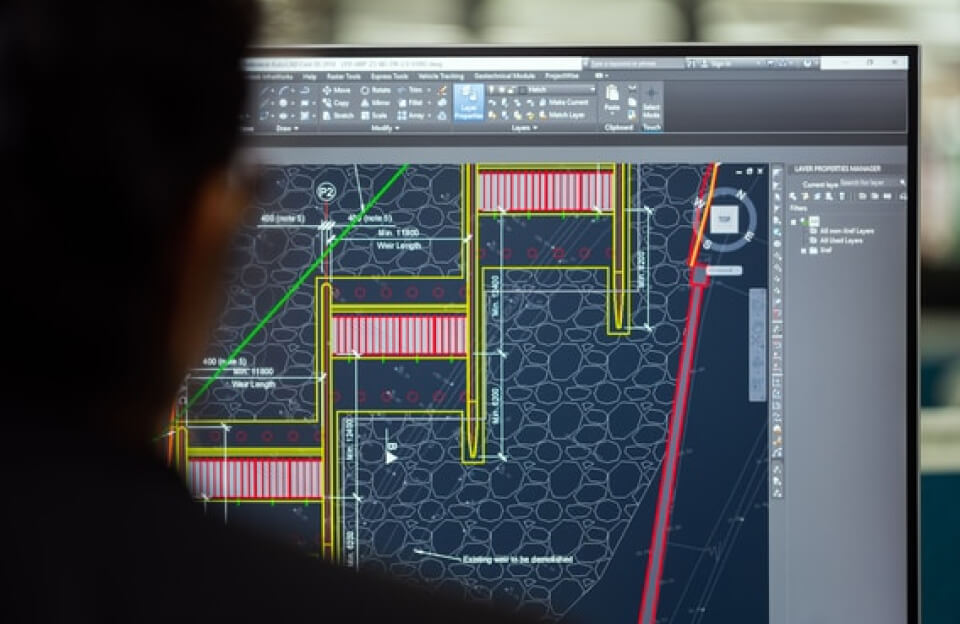
“Life on CAD”
In the world of design and engineering, speed and precision are everything. Whether you’re drafting architectural plans, designing mechanical parts, or creating 3D models, your efficiency often depends on one simple skill — mastering shortcuts.
“Life on CAD” is more than learning commands. It’s about transforming your workflow, reducing repetitive actions, and unlocking the true power of computer-aided design software.
What is CAD?
CAD stands for Computer-Aided Design. It refers to software used by engineers, architects, product designers, and manufacturers to create precise technical drawings and models.
Popular CAD platforms include:
1.AutoCAD
2.SolidWorks
3.Fusion 360
4.CATIA
While each platform has unique tools, they all share one common productivity secret: keyboard shortcuts.
Why Shortcuts Matter
When starting with CAD, many users rely heavily on toolbars and menus. Clicking icons works — but it slows you down.
Shortcuts allow you to:
- Execute commands instantly
- Reduce mouse movement
- Improve drafting speed
- Maintain workflow focus
- Minimize repetitive strain
Over time, mastering shortcuts can cut your design time significantly.
In professional environments where deadlines matter, those seconds add up.
The Psychology of Speed
Using shortcuts changes how you interact with software. Instead of searching for commands visually, your hands begin to remember them.
This muscle memory:
- Boosts confidence
- Reduces interruptions
- Keeps creative momentum flowing
Design becomes smoother and more intuitive.
Essential CAD Shortcuts to Know
While shortcuts vary slightly across programs, here are commonly used commands in many CAD systems:
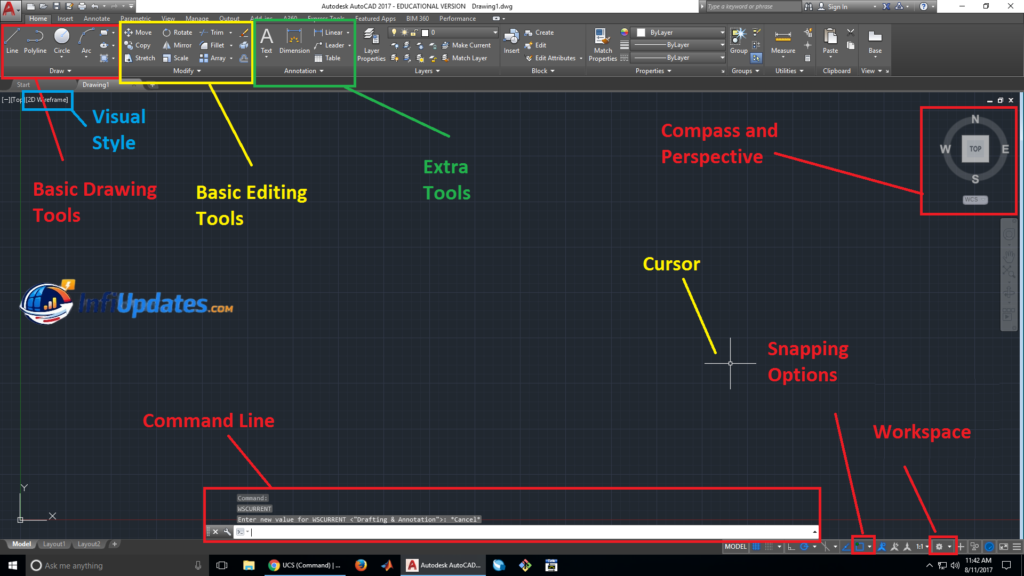
Drawing Commands
- L – Line
- C – Circle
- REC – Rectangle
- PL – Polyline
These basic commands form the foundation of most technical drawings.
Modify Commands
- M – Move
- CO – Copy
- TR – Trim
- EX – Extend
- RO – Rotate
- MI – Mirror
These allow you to adjust and refine designs quickly without redrawing.
Viewing Controls
- Z – Zoom
- P – Pan
Navigating efficiently within your workspace is just as important as drawing itself.
Customizing Shortcuts
One of the most powerful features of CAD software is customization. Most platforms allow you to:
- Modify default shortcuts
- Create aliases
- Assign macros
- Build command scripts
Advanced users often tailor shortcuts to match their workflow style, increasing productivity even further.
From Beginner to Pro
At first, memorizing shortcuts may feel overwhelming. The best strategy is gradual learning:
- Start with 5–10 frequently used commands
- Practice daily
- Avoid relying on menus
- Add new shortcuts weekly
Within a month, your drafting speed can improve dramatically.
Professionals who work eight hours a day in CAD often rely almost entirely on keyboard commands.
Beyond Speed: Accuracy and Precision
Shortcuts also reduce errors. When you use direct command input:
- You avoid misclicking tools
- You reduce unnecessary steps
- You maintain design consistency
This leads to cleaner drawings and more efficient revisions.
CAD in Modern Careers
Today, CAD skills are essential in:
- Architecture
- Mechanical engineering
- Civil design
- Interior design
- Product development
- Manufacturing
Employers value not just software knowledge but workflow efficiency. A designer who masters shortcuts demonstrates professionalism and technical fluency.
The Lifestyle of a CAD User
“Life on CAD” often means long hours in front of detailed drawings. Efficiency is not just about productivity — it’s about reducing fatigue.
Using shortcuts:
- Lowers wrist strain
- Minimizes repetitive mouse movement
- Keeps posture more balanced
Small improvements in workflow can make a big difference over years of professional work.
Mastering CAD shortcuts is like learning a new language. At first, it feels technical and structured. Over time, it becomes second nature.
The difference between an average CAD user and a highly efficient one often lies in how comfortably they navigate commands. Shortcuts are not just time-savers — they are workflow transformers.
If you spend hours inside drafting software, investing time in learning shortcuts is one of the smartest decisions you can make.
Life on CAD becomes faster, smoother, and far more productive — one command at a time.